
AI agent and bulk editor for Shopify
Ask your store anything. Change it in bulk.
Ask a question and get an answer from your live store data. Give an instruction and review every change before it is written. Undo it from history.
The problem
Three ways a bulk edit goes wrong in Shopify
The admin, a CSV and a table editor each fail at a different step, and each is still the right tool for one kind of job.
Fails at scale
One product at a time
The admin bulk editor covers a few fields and one page of products. A price change across 400 variants is 400 clicks, or a spreadsheet.
Still right for a handful of products you can see on one page.
Fails at review
A CSV writes what it contains
An import has no preview and no undo. A shifted column or 12,50 read as 1250 is applied as-is, and a customer finds it.
Still right when the change starts as a file: a supplier feed, a migration. ApiMate vs Matrixify
Fails at targeting
A filter that matched the wrong set
Table editors preview rows, but the filter is built by hand: "all hoodies" that included archived ones, "XL" that matched "XXL".
Still right when the same rule runs on a schedule, every week. ApiMate vs QuickEdit
ApiMate starts from a sentence: scope and rule in one line, every row previewed, one approval, revert from history.
All five Shopify bulk editors comparedAsk the agent
Ask first. It is free, and it changes nothing
Sales, stock, catalog gaps. A question is a read: no approval needed, and the free plan covers a full pass over your store.
Install and askWhich 10 products sold the most units in the last 30 days?
Sales and orders. What sold, what did not, what gets refunded, how this month compares to the last.
Which best sellers have fewer than 10 units left?
Stock that needs attention. Best sellers about to run out, and products that have not sold in 90 days.
Audit my catalog for Merchant Center issues
Google Merchant Center readiness. Missing GTINs and brands, placeholder images, price mismatches. Before the review team looks.
Which products are missing SEO fields?
Missing SEO fields. No meta description, titles over 60 characters, images with no alt text.
Find variants with leftover import options
Variant and option hygiene. Leftover "Ships From" options, "Default Title", variants with no SKU or barcode.
List variants where compare-at price is below price
Price and stock inconsistencies. Compare-at below price, odd cents, negative or zero stock on live products.
When an answer points at something to fix, the fix comes as a plan you can approve or ignore.
What you can change
Every product field, in bulk
If it is a field in the Shopify admin, one instruction can scope it, preview it and write it.
Prices and sales
Percent or fixed, up or down, rounded to .99 if you say so. Price and compare-at together for a sale, both put back when it ends.
Inventory per location
Set or adjust stock for the variants in scope, at one location or all of them.
SEO fields and image alt text
Fill the empty ones, shorten the ones over the limit, keep the ones that are fine. Alt text is written from the product, not the file name.
Titles and descriptions
Strip supplier text, rewrite to a house style, or write descriptions for products that have none.
Variants, metafields and dimensions
Drop a "Ships From" option, rename "Default Title", convert weight and size units. The things imports leave behind.
Tags, status, collections, new products
Tag or untag a set, publish or archive, build a collection, or create thirty products with variants from one instruction.
How it works
Instruction, plan, approval
The same three steps for 40 variants or a thousand products.
- 01
Say what changes, and for which products
Scope by vendor, collection, tag, product type, status, variant option or a price range. "Only XL variants" and "products with no meta description" are both scopes.
- 02
Read the plan
ApiMate reads the products in scope and lists every change: product, field, current value, new value. The count is in the first line. If it says 1,200 and you pictured 40, cancel and narrow the scope. Nothing has been written yet.
- 03
Approve once. Revert if you need to.
One approval writes the rows. The value each row had before is saved with the job, so revert is a new job built from those values, for exactly the rows that changed. Supported updates only; the case pages say which.
The preview
What you see before anything is written
One plan per instruction. If a row is wrong you see it here, not in the store.
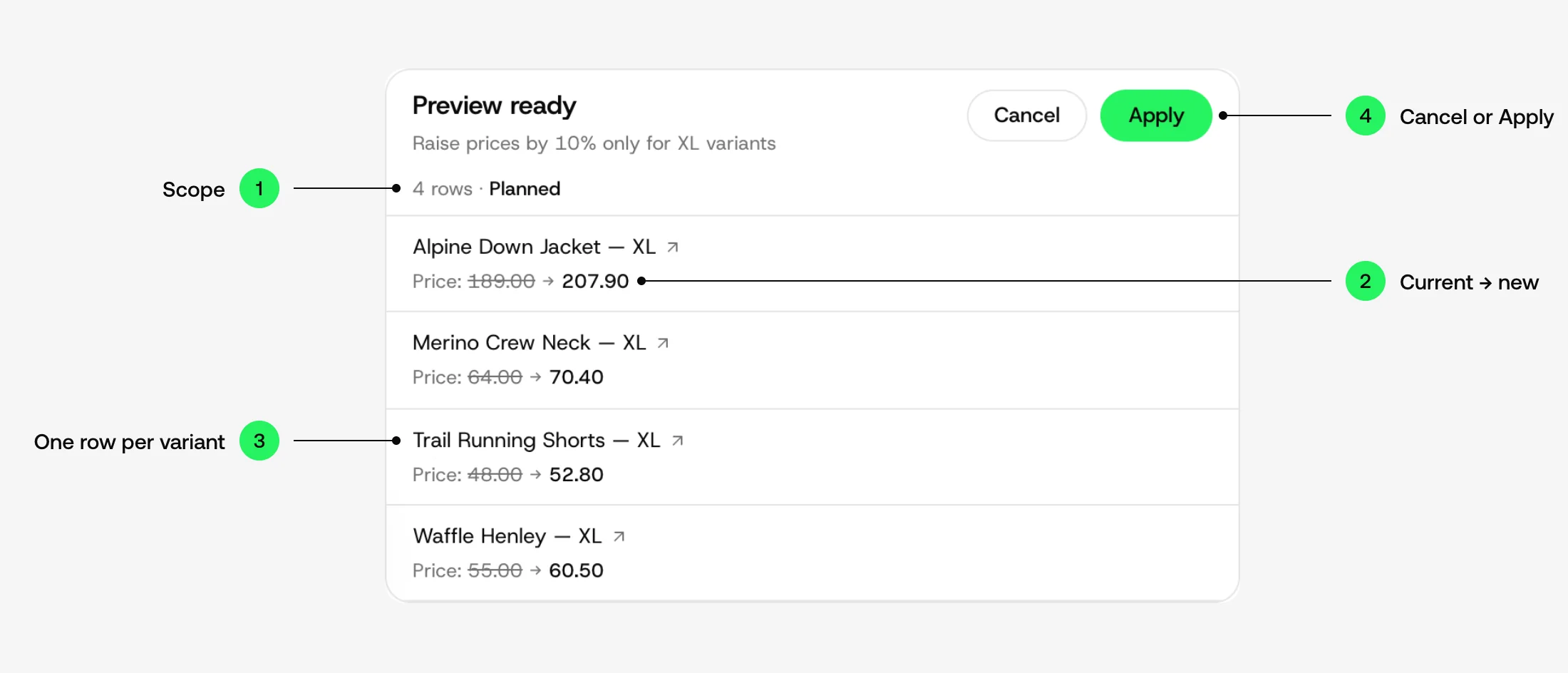
1. Scope
Your instruction, word for word, and the number of rows it matched. This is the number to check first. Wrong count, wrong scope: cancel and narrow it.
2. Current → new
The value in the store now, struck through, and the value that will replace it. The current one is read live when the plan is built, not from a cache.
3. One row per product or variant
Every changed field is a line inside its row, and the arrow next to the name opens that product in the Shopify admin. Nothing is summarised away.
4. Cancel or Apply
Nothing is written until you press Apply. A change that cannot be undone, such as a delete, asks for a checkbox first.
Undo. When you apply, the current values are saved with the job. Revert writes them back, for exactly the rows that job touched.
How undo works in Shopify, and what it cannot doCases
Real jobs, each from a real run
Each case ran end to end on a real catalog: the instruction, the preview, what to check, and what revert restores.
- Bulk edit SEO titles, meta descriptions and image alt text in ShopifySEO titles and meta descriptions across the catalog, one approval
- Refresh a Shopify product listing: copy, SEO, image and priceOne snowboard listing, six kinds of changes, one preview and undo
- Audit a Shopify catalog before a Google Merchant Center reviewEvery product checked, images included, before the review team looks
- Turn on Shopify inventory tracking across every product and locationEvery variant tracked, stocked at every location, quantities untouched
- Bulk update prices and inventory in Shopify, with undoPrices, compare-at and stock per location, one preview each
- Bulk edit Shopify metafields, weight and dimensionsA metafield filled from the tags, every row read back
Pricing built around AI credits
Questions and audits fit in the free plan. Upgrade when the edits get larger: a solo merchant, an ops team, or an agency with client stores.
Basic
Billed monthly
- 2,000 AI credits/month
- Bulk product edits from chat
- Side-by-side change review
Pro
Billed monthly
- 5,000 AI credits/month
- Catalog-wide AI edits
- Target products with filters
Ultimate
Billed monthly
- 10,000 AI credits/month
- High-volume bulk editing
- SEO, tags, prices, metafields
Agency
Per store, or one agreement
- 30,000 AI credits/month per store
- Several client stores, one agreement
- Preview, approval and history per store
Questions
Questions merchants ask before installing
Is ApiMate an AI agent or a bulk editor?+
Both. Ask it a question about your products, inventory, collections or orders and it reads the store and answers; a read changes nothing and needs no approval. Tell it what to change and it works as a bulk editor: it bulk-edits products, variants, prices, inventory, SEO fields, metafields, tags, image alt text and collections in Shopify. The difference from a table editor is the starting point: an instruction in chat instead of a filter and a form.
Does it change anything without asking?+
No. Every write is a plan with a row for every product or variant it touches, shown before it runs. You apply it or cancel it. Reads, such as "how many products have no meta description", need no approval.
Can I undo a bulk edit?+
Yes, for supported updates. The value each row had before is saved with the job. Revert builds a new job from those values and writes them back, only to the rows the first job changed.
How do I target the right products?+
By vendor, collection, tag, product type, status, variant option, price range, or a condition such as "products with no image". The plan shows the count first. If the count is wrong, the scope is wrong; cancel and narrow it.
Can it bulk update Shopify prices?+
Yes. Price, compare-at price and inventory are variant-level writes. Percent or fixed amount, up or down, optional rounding. See the prices case for three runs on the test store.
Can it bulk edit Shopify metafields?+
Yes. Product and variant metafields, including weight and dimensions with unit conversion. The exact fields depend on your store definitions and the permissions you grant the app.
14 more questions
Does it work with variants, not just products?+
Yes. Prices, stock, metafields and options are variant rows in the plan. A product with a single Default Title variant is still a variant and is in scope unless you exclude it.
How is this different from a CSV import or Matrixify?+
A CSV is right when the source of truth is already a file. ApiMate is right when the change is a sentence: "raise XL prices by 10%" is one line here and a prepared spreadsheet there. Matrixify also covers migrations and scheduled feeds, which ApiMate does not.
Does it replace Ablestar, Hextom or QuickEdit?+
Not for every store. Those apps are task and table editors and are good at recurring, scheduled changes. ApiMate does not schedule. The roundup page compares all five on preview, undo and pricing.
What does the free plan include?+
100 AI credits a month, preview on every change, small bulk jobs and basic history. It is for testing on your own catalog. Paid plans raise the credit allowance and the job size.
Which Shopify permissions does it need?+
Read and write on products, and on the other objects you want it to change, such as inventory or collections. Scopes are approved at install. A field outside the granted scopes is not offered in a plan.
Is my catalog used to train a model?+
No. Merchant and customer data are not used for training. Every write is a Shopify change you approved on the exact rows shown.
Can it bulk edit product tags, status and collections?+
Yes. Add or remove tags across a scope, set products to active, draft or archived, and add products to a collection. Creating a collection and filling it is one job.
Can it bulk edit image alt text?+
Yes. Alt text is written from the product title, type and vendor, not from the file name or the picture, and every image is a row in the preview. Existing alt text is kept unless you say to rewrite it.
Does it work on Shopify Plus and large catalogs?+
Yes. The plan is built from a read of the products in scope, so a large catalog means a longer read and a longer preview, not a different flow. Very large jobs run in batches and the history entry is one job.
Can I import a CSV with it?+
Not as a file. If your source of truth is a spreadsheet, Matrixify is the better tool and the comparison page says so. ApiMate is for changes described in words, including ones that would otherwise need a spreadsheet to be prepared first.
Can I migrate from Matrixify, Ablestar or Hextom?+
There is nothing to migrate. ApiMate reads the products in your store, not another app's data. Merchants keep the file tool for imports and use ApiMate for the day-to-day changes.
What happens if I approve a mistake?+
Open history, find the job, revert. The previous values were saved with the job, so revert writes them back to exactly the rows that changed. For the few operations that cannot be reverted, the case page and the preview say so before you approve.
Does the audit change anything in my store?+
No. An audit is a read. It produces a report and, if you want, a plan for the fixes. The plan is a separate step with its own approval.
Where does my store data go?+
ApiMate reads products through your Shopify install with the permissions you granted, builds the plan, and writes back to Shopify after your approval. Data is not sold, shared or used for training.
Ask your store the first question
Free to try. Every change comes with a preview, one approval and a way back.